Official Manual · iPhone / iPad

Shadowrocket Setup Guide

Add your existing connection details first, then choose a routing mode. After connecting, verify the result with real-world access and connection records.

Follow the steps in order for your first setup. If you’re connected but having trouble accessing sites, jump straight to verification and troubleshooting.

Step 01 · Prepare your connection details

Add Server and import a subscription

Manual entry, subscription import, and QR code scanning are separate options. Choose the one that matches the details you already have; there’s no need to import the same information twice.

First, identify the details you have

Open Shadowrocket, go to Home, and check the SERVER group. If you have a server address, port, and authentication details, add it manually with Add Server. If you have a subscription link from a service you already use that can update multiple server entries, choose the corresponding Subscribe option. For a single server’s share link or QR code, use the relevant import option. A link starting with https:// is not necessarily a subscription; a regular information page can’t be imported as subscription data.

Add a server manually: choose Type, then enter the details

On Home, tap Add Server and choose the Type that matches your server’s protocol. Type determines which fields appear. The screenshot shows a form with Host, Port, Password, and Method; other protocols may use different fields. Enter the server address in Host and the connection port in Port, then fill in the authentication details as provided. Host usually contains only a domain or address, not a webpage path. Use the same Method as in your existing details; don’t substitute one just because its name looks similar.

For Trojan, VMess, or another protocol, check the authentication, transport, and TLS fields shown for that Type. Don’t treat Password for one protocol as an identifier for another. When finished, save the entry, return to Home, and confirm that it appears under SERVER with the expected name. If a field is unclear, check the protocol and interface terms in the glossary rather than guessing through repeated attempts.

Import a subscription or scan a QR code, then check the result

To add an existing subscription link, choose Subscribe under Type in Add Server, enter the subscription URL, and save. Server subscriptions and remote configurations managed on the Config page serve different purposes. If you see a Subscribe option in Config, first check what type of content it accepts. Don’t confuse a server-list subscription with a URL for a full configuration file. If the option’s name or location differs, follow the prompt on your screen. After importing, check whether the expected servers appear on Home; a saved URL alone doesn’t confirm a successful import.

For an existing QR code, choose Scan QR Code and allow camera access if prompted, then check the recognized content. Import from Cloud JSON is for JSON content that meets its requirements, not a general-purpose subscription import option. For an existing share link, follow the app’s clipboard import prompt. Before importing, make sure the clipboard contains only the complete link, without explanatory text, line breaks, or chat punctuation. Don’t paste a link containing authentication details into a public page.

When finished, return to Home, expand the relevant group, and select a server. If the list is still empty, check whether the subscription returned recognizable content, whether it has expired, and whether the group is collapsed. Adding the same address again usually won’t fix an incorrectly formatted response. For details on the different import options, read How to import subscriptions. Once a server is available to select, continue to the next step.
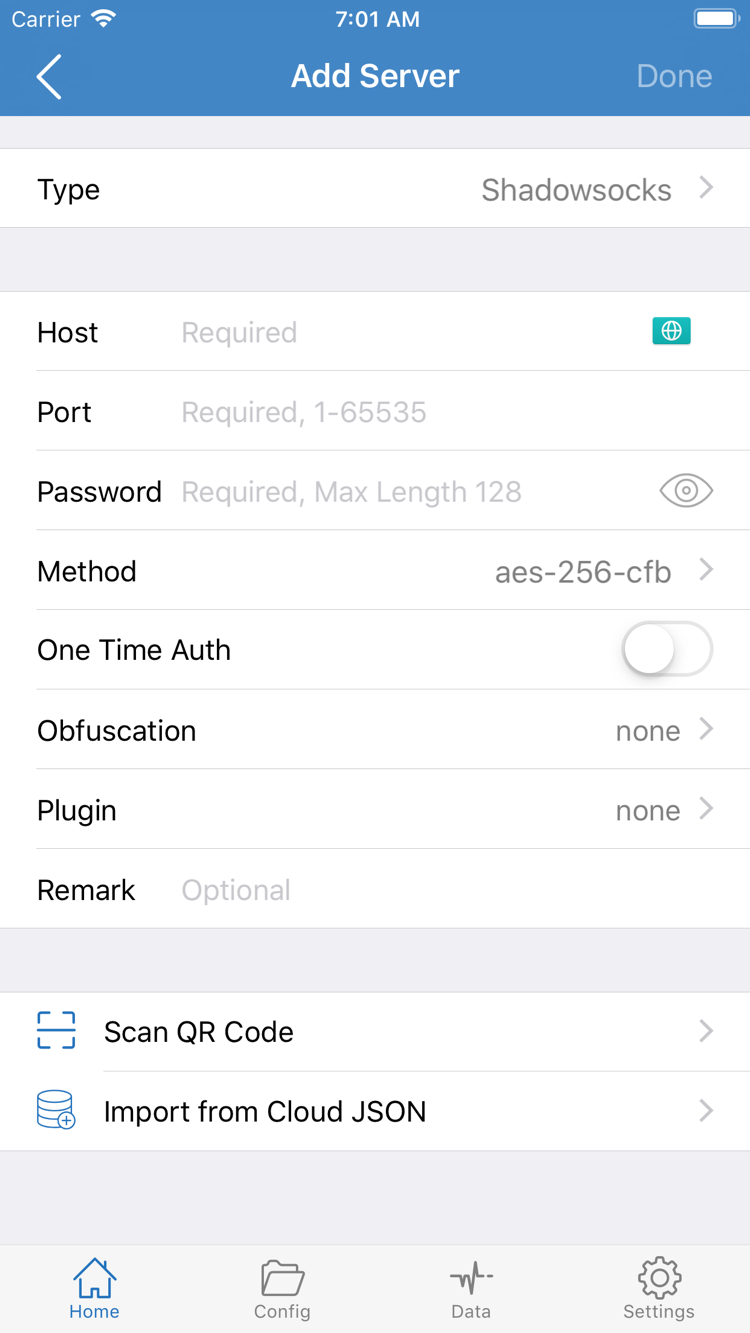
Shadowrocket’s Add Server screen, with Type, Host, Port, Password, Method, and options such as Scan QR Code
Add Server: choose Type first, then enter the details you have. Available fields may vary by protocol.

Step 02 · Choose how to handle traffic

Global Routing and Rule configuration

The server determines where the connection goes; Global Routing determines how traffic is handled. Check them separately.

Return to Home, tap Global Routing, and check the selected mode. The three options are Config, Proxy, and Direct. Before setting up routing, decide what you want to do and choose the matching option. Selecting a server on Home does not mean all requests are routed through it.

ModeHow it worksWhat to check
ConfigUses the active configuration’s rules to determine how requests are handled.The active configuration, rule order, and final policy.
ProxyHandles traffic in Proxy mode rather than primarily routing it by individual rules.Whether the selected server is available and access works in practice.
DirectConnects traffic directly to its destination.This mode cannot confirm that the selected proxy server is working.

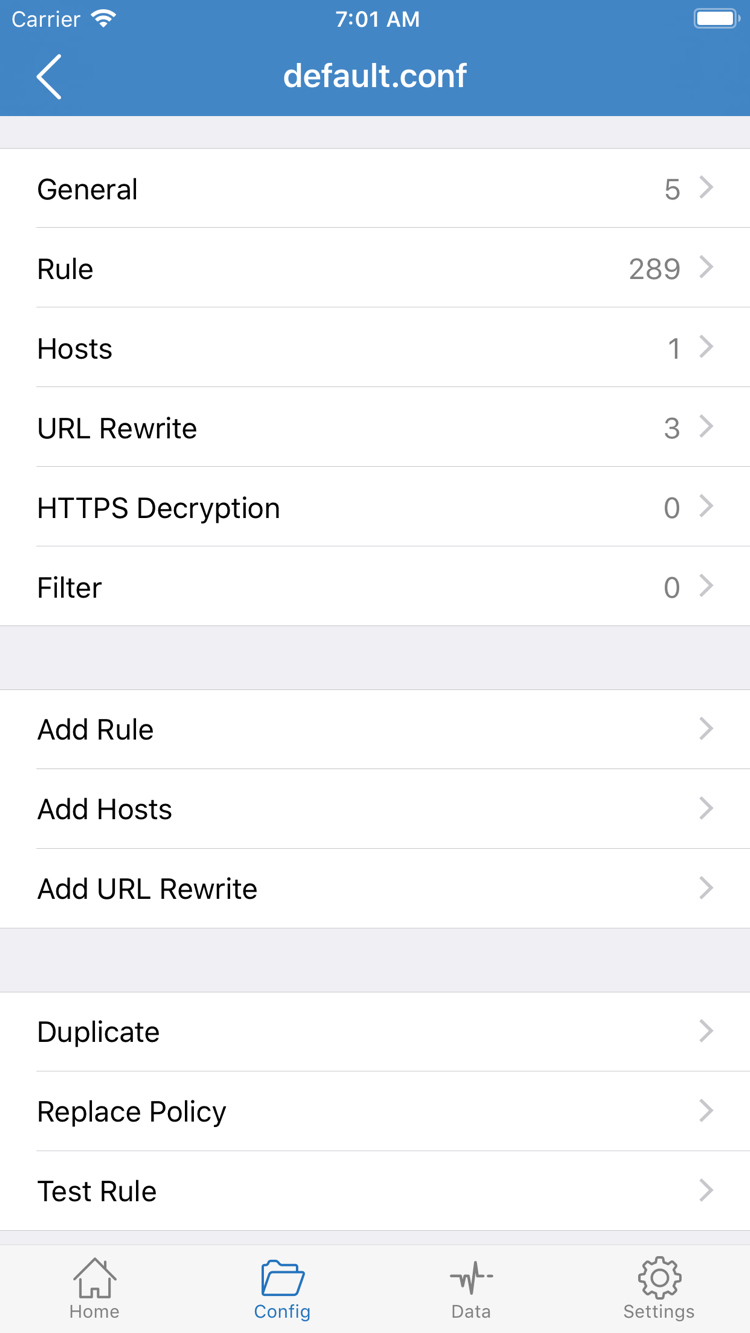
To route requests according to rules, choose Config, then open the Config tab at the bottom and confirm which profile is active. Open the configuration editor to see sections such as General, Rule, and Hosts. The screenshot shows configuration content, not a server subscription list. An existing service may provide server details without a complete set of routing rules, so importing a server and configuring rule-based routing are separate tasks.

Check existing Rule entries before adding any

Open Rule to review existing entries. Rules are generally evaluated in order, so specific domain or address conditions should come before the fallback rule. FINAL applies when no earlier rule matches. PROXY, DIRECT, and REJECT are policy keywords, not three servers. The reserved example domain below illustrates the syntax only; it is not server information you can connect to. Don’t replace the entire Rule section without understanding the existing configuration.

[Rule]
DOMAIN-SUFFIX,example.com,PROXY
IP-CIDR,192.168.0.0/16,DIRECT
FINAL,PROXY

To check whether an existing server can connect, temporarily switch to Proxy mode for comparison, then return to Config. If access works in Proxy but not Config, check the rules and policy references in your configuration before importing the subscription again. For details on DOMAIN-SUFFIX, IP-CIDR, and FINAL, see the glossary. This guide covers the basic connection workflow, not advanced rule authoring.

Before changing an existing configuration, save a copy and adjust one condition at a time. After saving, return to Home and confirm that Global Routing shows the mode you selected, then connect.

Shadowrocket’s Config editor, showing General, Rule, Hosts, URL Rewrite, HTTPS Decryption, and Add Rule
Config editor: rules are in the Rule section. Choose a Global Routing mode from Home.

Step 03 · Connect

Home Connection switch and first-time authorization

Select a server, confirm the routing mode, then turn on the switch. System authorization and service authentication are separate.

Return to Home and select the server you want to use under SERVER. Confirm that the selection indicator is on the right entry. If your subscription imported multiple servers, don’t rely on the group name alone; the selected server is the one that will be used for the connection. If you’ve changed any details, save them before returning to Home so you don’t mistake unsaved form entries for active settings.

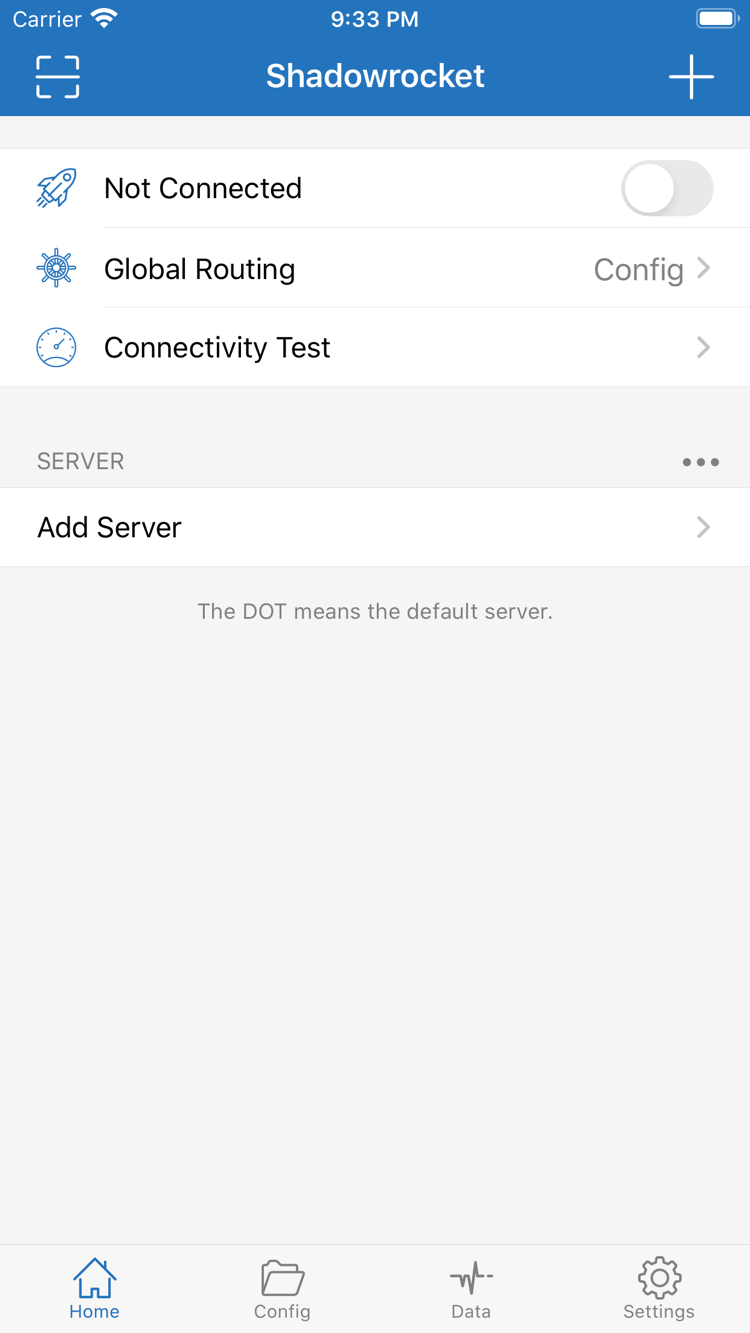
After checking Global Routing, turn on the switch next to Not Connected at the top. The first time you connect, the system may ask to add a VPN configuration. Shadowrocket needs this authorization to use the system’s network capabilities. Confirm that the prompt was triggered by your current action in Shadowrocket, then follow the system instructions. Your device may require a passcode or biometric authentication. This is not a login to your service, and you don’t need to enter your subscription password in the device passcode field.

After authorizing, return to Home and wait for the status to update. Connected means a connection has been established, but it doesn’t guarantee that every destination is accessible. Next, test the combination of server, destination, and rules. If the switch immediately returns to Not Connected, check whether you canceled authorization, another VPN configuration is active in the system, or device management settings restrict configuration changes. Avoid toggling the switch repeatedly, as this can make it harder to tell what happened each time.

The iPad layout may differ from the screenshots, but the steps are the same: confirm the selected server, check Global Routing, then use the connection switch. To change server details or switch configurations, disconnect first, save your changes, and reconnect. Keep a record of what you changed. To stop using the connection, simply turn off the switch on Home; deleting a subscription or clearing configuration isn’t necessary.

If On Demand is enabled, its trigger conditions may also affect the connection. For your first test, use a clear manual connection workflow. Set up On Demand separately once you understand the results, so you don’t introduce multiple variables at once. Leave the connection on and move to the next step to check real-world access.

Shadowrocket’s Home screen, with a Not Connected switch at the top and Global Routing, Connectivity Test, SERVER, and Add Server below
Home: the connection switch, Global Routing, and Connectivity Test are on the same screen. Choose a server in the SERVER group.

Step 04 · Check the results

Connectivity Test and access verification

On Home, tap Connectivity Test and wait for the current test to finish. The test checks connectivity for a specific method, and results depend on the target, Test Method, current network, and server status. A single timeout doesn’t prove that all services are unavailable. Likewise, a test result doesn’t mean every app or domain uses the same route. Check whether the results are consistent, then test access in a browser; don’t rely on a single number in the list.

First, check basic access

In a browser, open a page you know you can access, then open the destination you want to test. Check whether each page loads fully, not just whether it has displayed content before; a cached page may still appear when the network is having problems.

Then check the traffic route

Review Global Routing and the active configuration. To check whether a request is using PROXY or DIRECT as expected, inspect its connection record and matching rule rather than relying only on the system VPN indicator.

In Config mode, different domains may match different policies, so successfully opening one page doesn’t mean another destination uses the proxy too. For the same destination, briefly compare Proxy and Config: keep the server unchanged, switch modes, and retry the request. If the difference is consistent, note the domain and matching rule, then review Rule. When testing is done, restore your preferred mode so you don’t leave a temporary setting in place.

If a page works in the browser but an app doesn’t, check whether the app needs to reconnect and whether it has separate network settings. If nothing works, start troubleshooting with the basic network connection. Test only destinations you control or have permission to access. You don’t need to submit a subscription link, authentication details, or a full configuration to an unfamiliar website to verify your connection.

Step 05 · Change one thing at a time

Settings and common issues

Check in this order: basic network, imported content, server details, then routing and DNS. Keep a record of the conditions needed to reproduce the issue.

The server list is empty or the subscription won’t update

Disconnect first. Check that the current network can access the pages required by your existing service, then make sure the subscription URL is complete, has no extra spaces, and is still authorized by the service. Saving a subscription name doesn’t mean the server list was retrieved; check the update message, then return to Home and confirm that entries appear. If the service returns a login page or an error message, the app can’t use it as server data. Don’t post the full subscription URL publicly; its authentication details may grant access.

A server appears, but the connection times out or authentication fails

Return to Add Server and compare Type, Host, Port, and authentication details with the original information. Check domain spelling, the number of digits in the port, and leading or trailing spaces in the password. Don’t change the TLS server name based on a guess. If only one entry in a group fails while others work on the same network, check that entry and its service status first. If switching networks fixes the issue, note the difference between Wi-Fi and cellular data. Don’t change the protocol, port, and rules all at once.

Connected, but the destination won’t open

First, make sure you haven’t selected Direct. Then compare Proxy and Config. If the issue occurs only in Config, check that the right profile is active, the expected rule matches, and the policy references a valid target. If both modes fail, check the server and DNS. A domain access issue doesn’t necessarily indicate a DNS problem; use the error message to guide your investigation rather than changing DNS as a catch-all fix.

Test results don’t match real-world access

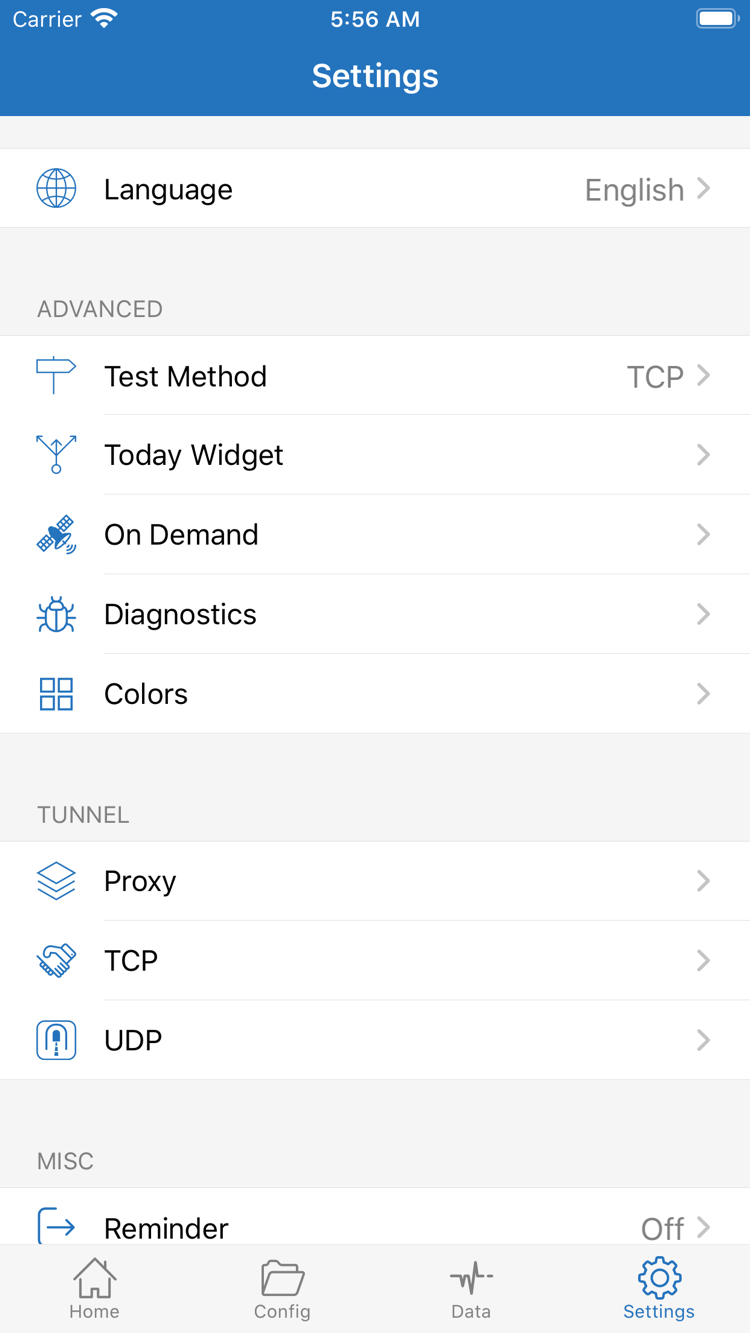
Open Settings and check Test Method. Different methods test different aspects of connectivity, and the test destination may be temporarily unreachable. Keep the method consistent when comparing results, and use real-world access tests as additional evidence. Proxy, TCP, and UDP settings in Settings affect different behaviors. If you’re new to the app, don’t change them all at once. Note the original values before making changes so you can restore them if needed.

The switch keeps turning off, or you need more diagnostics

If the connection turns back on after you switch it off manually, check the On Demand conditions in Settings rather than deleting all your configurations. If you still can’t identify the issue, open Diagnostics and record when it occurred, your current network, Global Routing mode, selected server, and the symptoms. Before sharing a report, remove subscription URLs, passwords, authentication identifiers, and personal network details. Include only what’s needed to diagnose the issue.

These steps are a quick check for a first connection. For persistent timeouts, DNS issues, battery drain, problems after an update, or iPad-specific issues, continue to the troubleshooting guide. For help understanding configuration fields, see the glossary. Keeping a copy of the last working configuration makes issues easier to reproduce and resolve than repeatedly adding unknown settings.

Shadowrocket’s Settings screen, showing Language, Test Method, Today Widget, On Demand, Diagnostics, Proxy, TCP, and UDP
Settings: use Test Method to check the test approach, On Demand to manage connection triggers, and Diagnostics for further troubleshooting.