Official Shadowrocket app icon

Official App Store app · iPhone / iPad

Shadowrocket Setup Guide

A rule-based proxy client for iOS / iPadOS, purchased through the official App Store as a one-time purchase.

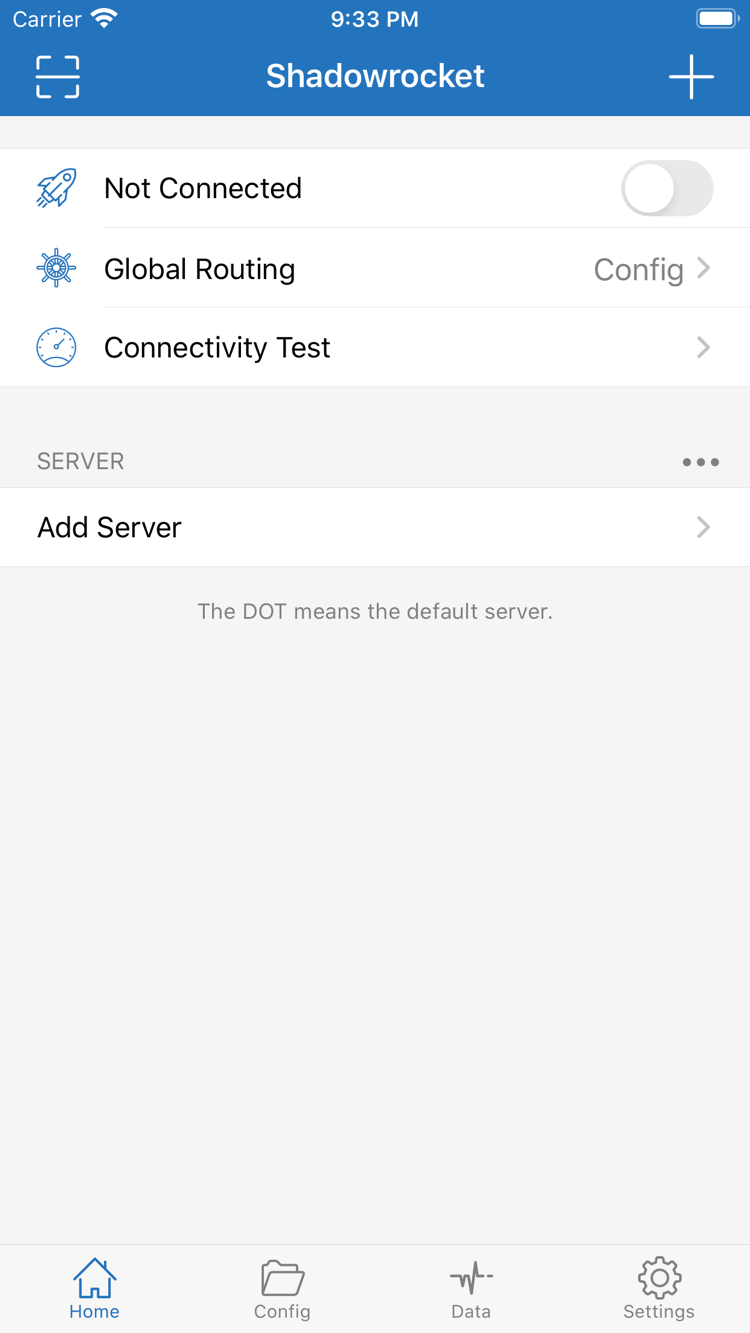
Official Shadowrocket Home screen
Official Home screen · Connection details are shown for illustration only

This is the official Shadowrocket Proxy Client website and manual. First verify the official App Store listing, then import your existing server details or subscription, and finally test the connection and rules. Rule snippets on this site explain syntax; they are not complete files ready to replace your personal configuration.

Client Features · Browse by Task

Rules, connections, and configuration management

Separate traffic routing, server parameters, and configuration files before changing the relevant settings. Browse the sections to find each feature's location, purpose, and verification steps.

Rule Routing and Global Routing

In Home > Global Routing, Config routes traffic according to the active configuration, Proxy sends regular traffic through the selected proxy, and Direct connects without a proxy. For rule-based routing, select the correct configuration file first, then check the matching order under Rule. DOMAIN-SUFFIX matches domain suffixes; IP-CIDR matches address ranges; place FINAL last to handle traffic that matches no earlier rule. To verify the setup, check which rule matches actual requests instead of relying only on the connection toggle.

Rules Guide · Global Routing and Match Order

To understand rule routing, break each request into three questions: which configuration is active, which rule matches first, and which policy applies after a match. PROXY, DIRECT, and REJECT are policy keywords in rules; Proxy and Direct in Global Routing are global modes. They operate at different levels, so check both when troubleshooting.

Explore rules and interface terminology →

Devices and App Store

iPhone and iPad Purchase and Installation

The App Store is the only place to get Shadowrocket. Before purchasing, review the listing's compatibility and purchase information. System requirements and Universal Purchase availability are as stated on the App Store page.

Shadowrocket is also available from the same App Store on Mac / Apple TV. System requirements and purchase availability are as stated on the App Store page.

Before installing for the first time, make sure you can access your existing subscription or server details. Purchasing the app grants the right to use the client; you manage server addresses, authentication details, and rule files separately. If you have already purchased it, check the purchase history for your current App Store account before buying again.

If the app does not appear in App Store search, check your account's storefront, device compatibility, and access restrictions. Search ranking does not verify authenticity, and another app with the same name is not a substitute for checking the listing. Open the product page and compare the developer, official icon, and app ID, then confirm the transaction at the local price shown.

Quick Start Preview

Import, choose a mode, and test the connection

These steps assume you already have your own subscription or server details. Follow them in order, and revisit the relevant step if something fails. Avoid changing the server, configuration, and DNS all at once.

  1. Add Server: Add Existing Details

    To add a server manually, select Type first, then enter the address, port, and authentication details from your existing information. To scan a QR code, use Scan QR Code. Before importing from the clipboard, make sure you copied the complete share link—not a page title or explanatory text. Server subscriptions and configuration subscriptions serve different purposes; choose the import option that matches the link.

    After importing, check the number of entries, server details, and active selection. If the result is empty, check that the original URL is complete, whether access requires authentication, and whether the returned content is in the expected format. Do not repeatedly add the same URL to fix an update failure; duplicate entries make it harder to tell which one is in use.

  2. Global Routing: Choose How Traffic Is Routed

    To route traffic according to rules, select Config and confirm the active configuration under Config. Proxy sends regular traffic through the selected proxy; Direct connects without a proxy. Choose a mode to serve a clear testing goal. If behavior changes after switching from Proxy to Config, check rule matches first rather than assuming the server has failed.

    When using an existing configuration for the first time, review the default policy and FINAL under Rule, then check whether it includes the LAN rules you need. Do not paste an unfamiliar block of rules into an existing file and save it without review. Keep a copy of the original file to help determine whether a problem comes from imported content or later manual changes.

  3. Turn On the Connection and Check Real Requests

    Select a server and turn on the connection toggle. The first time, follow the system prompt to add a VPN configuration. Return to the app to confirm the connection state, run Connectivity Test for a basic check, and try a service you need to access. An enabled toggle only means the connection process has started; verify that DNS, rule policies, and actual requests behave as expected.

    If a request times out, first check whether the server is reachable on the current network. If only domain names fail, check DNS; if only specific destinations fail, check the rules and the destination service. Note the network, mode, and symptoms during testing to avoid repeating the same attempts. Before sharing logs, remove passwords, subscription authentication details, and personal request content.

After the first connection test succeeds, consider ongoing settings such as On Demand, subscription updates, and sync. A basic setup you can reproduce is easier to maintain than enabling several options at once. After each change, test the same destination to confirm the result comes from that setting.

App Authenticity and Purchase Details

Check Three Details and Understand Purchase Scope

Shadowrocket is a closed-source commercial app. This site uses the App Store product page and the app's actual interface text as references. Confirm purchases, compatibility, and update history in the store.

Verify · Developer and Product URL

Shadow Launch Technology Limited

On the App Store product page, check the developer name: Shadow Launch Technology Limited. Then check the app ID in the product URL: 932747118. A similar name, high search ranking, or similar icon color is no substitute for checking both details.

Use the opened product page to verify the app, not the truncated title in search results. The developer information, product URL, and app name shown in the listing should all refer to the same product. If in doubt, return to this site's authenticity guide and check each detail again in order.

Verify · Official App Icon

Compare with the Official App Icon Used on This Site

The site header and first screen use Shadowrocket's official app icon, which you can compare with the icon in the store. Check the icon, developer name, and app ID together; do not rely on the name Shadowrocket or a search keyword alone.

After installing the app, open it and follow the Home, Config, and Settings entry points shown in the guide. When the system prompts you to add a VPN configuration for the first time, read the system information before deciding whether to allow it. Do not confuse system authorization with authorization for a server subscription.

Purchase · Price and App Usage Rights

What the One-Time Purchase Covers

The US storefront lists a one-time purchase price of $2.99; the actual price is shown on the App Store page. Other storefronts display local currency. Before paying, check your account, currency, and confirmation screen. The App Store manages app transactions and purchase history.

Buying the client does not buy a server plan. Purchasing the app grants the right to use the client; it does not automatically provide a working server or personal subscription. This site does not provide, sell, or recommend servers or subscriptions. The guides explain only how to use information you already have.

Restore · Devices and Purchase History

Check Purchases First, Then Restore Configuration

iPhone and iPad can use the same account's purchase history within the Universal Purchase scope stated in the store listing. When changing devices or reinstalling, find Shadowrocket in your App Store purchase history first, and make sure you are using the Apple ID used for the original purchase.

Getting the app again and restoring your configuration are separate steps. After installation, check that your existing subscriptions, server details, and configuration files are intact. Test again after restoring from iCloud sync or an exported file. Family Sharing, device compatibility, and availability are as stated on the App Store page.

Store Availability, Updates, and Account Region

Whether the product appears in the store can depend on your account's storefront, device compatibility, and system access restrictions. If search results differ, open the product page and check its notices before reviewing your account status. Not finding the app in search does not mean your purchase history is missing. Do not pay again before checking your account. System requirements are as stated on the App Store page.

App updates are managed through the App Store. You can use automatic updates or check manually in the store, depending on your settings. Save a working copy of your configuration before updating. If behavior changes afterward, first confirm that the configuration file and Global Routing settings are unchanged, then test each setting in turn. For details about transactions, purchase availability, and updates, refer to the current App Store listing rather than fixed historical information on a website.

Read the full app verification and purchase guide →

Featured Guides · Latest Three

Configuration Migration, DNS, and Link Formats

After your first connection test, explore guides based on your needs. Each article explains when a specific setting applies and how to verify it; you do not need to change every option at once.

Suggested reading order: start with purchase and setup guidance before your first installation; check link types if import fails; consult the troubleshooting guide if connections fail; and read the backup guide before changing devices. Use the terminology reference for rule keywords and interface labels. First identify which interface or configuration layer a term belongs to, then follow the relevant instructions.

View all articles →